> ## Documentation Index
> Fetch the complete documentation index at: https://docs.autocoder.cc/docs/llms.txt
> Use this file to discover all available pages before exploring further.
# Earn Free Credits on AutoCoder.cc with Missions
> Earn free AutoCoder.cc credits by completing missions — daily check-ins, beginner tasks, sharing builds in SparkVibe, and exploring features. This page lists every way to top up your credit balance without paying.
The **Earn credits** module helps you explore AutoCoder.cc features step-by-step and earn rewards through the mission and credit system. By completing various missions, you can quickly familiarize yourself with core capabilities while earning credits to unlock more usage rights.
A typical workflow in the Earn credits module involves:
1. **View** missions in **Usage & Credits**.
2. **Complete** different types of missions.
3. **Earn** credits.
4. **Check** your credit history in **Usage & Credits**.
5. **Use** credits to explore more features.
***
## Check-in
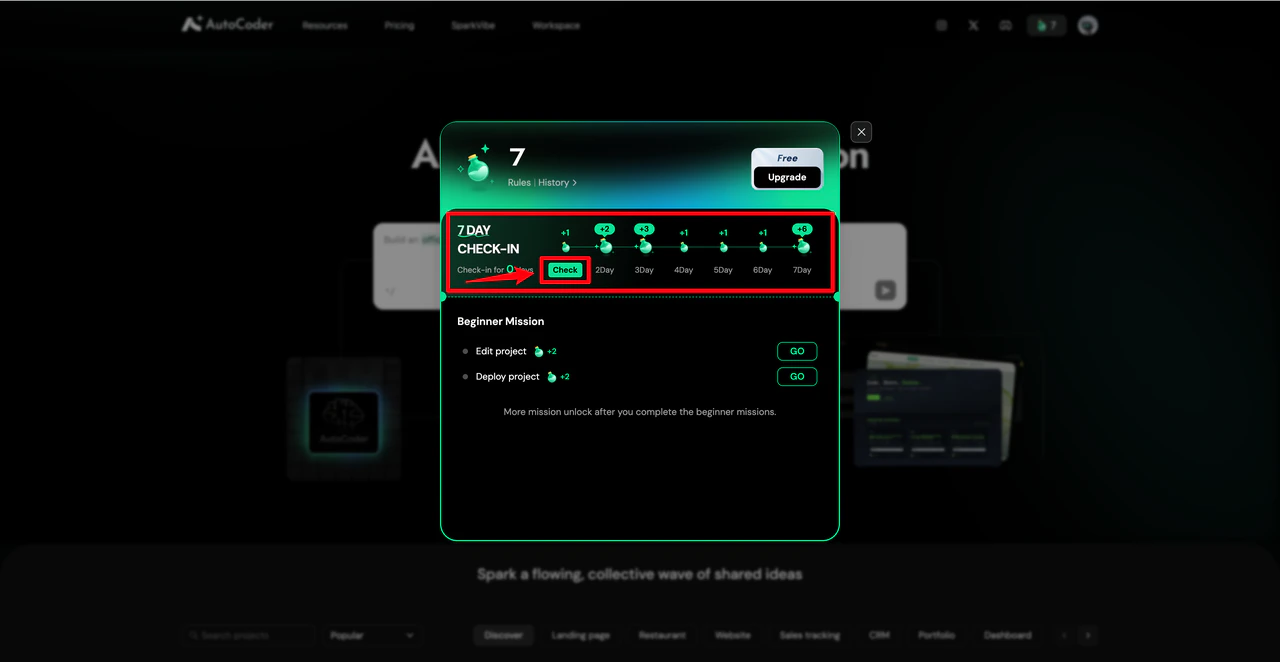
The **Check-in** feature allows you to sign in daily to receive system-issued reward credits. This mechanism helps you maintain consistent product usage and gradually accumulate credits.
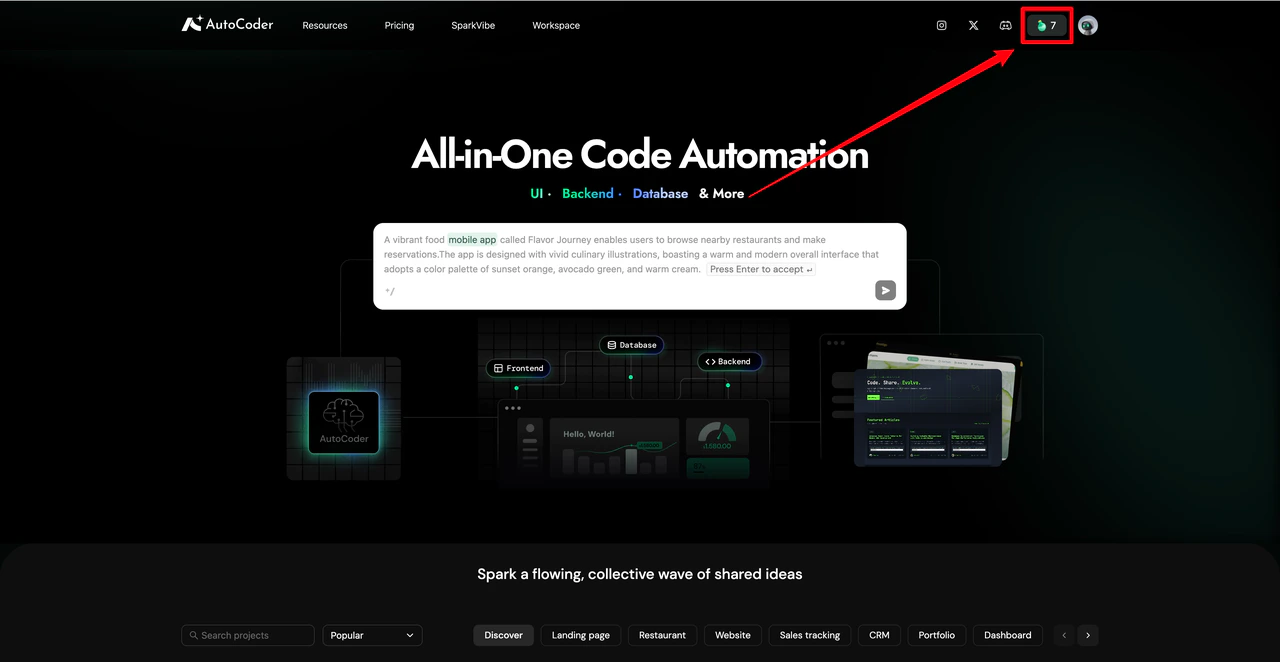
Click the check-in icon to open the page.
 Click **Check** to complete the sign-in and receive your credit reward.
 ***
## Missions
**Missions** guide you to experience the core features of AutoCoder.cc step-by-step. Different types of missions help you explore various product capabilities.
### Beginner missions
Beginner missions help you quickly familiarize yourself with basic AutoCoder.cc operations. Common missions include **Create a project**, **Edit a project**, and **Deploy a project**.
**Walkthrough: Create a project**
Click the icon to enter **Beginner missions**.
***
## Missions
**Missions** guide you to experience the core features of AutoCoder.cc step-by-step. Different types of missions help you explore various product capabilities.
### Beginner missions
Beginner missions help you quickly familiarize yourself with basic AutoCoder.cc operations. Common missions include **Create a project**, **Edit a project**, and **Deploy a project**.
**Walkthrough: Create a project**
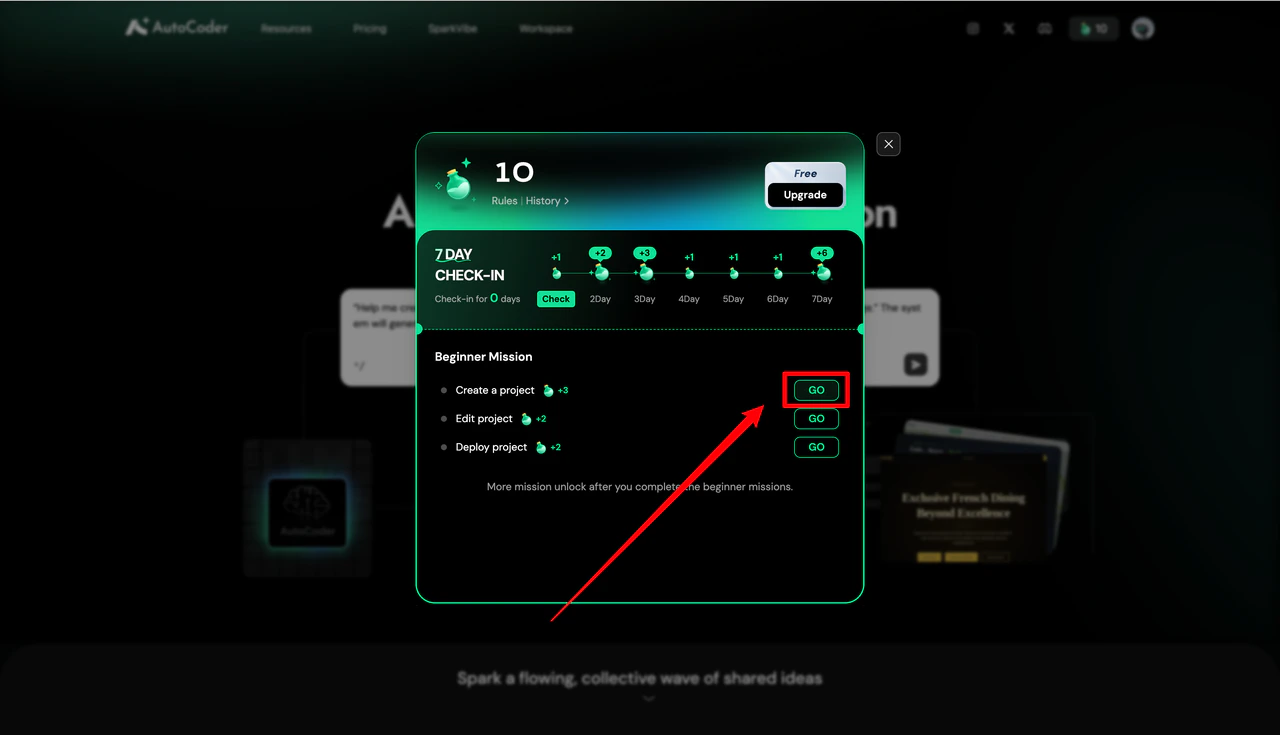
Click the icon to enter **Beginner missions**.
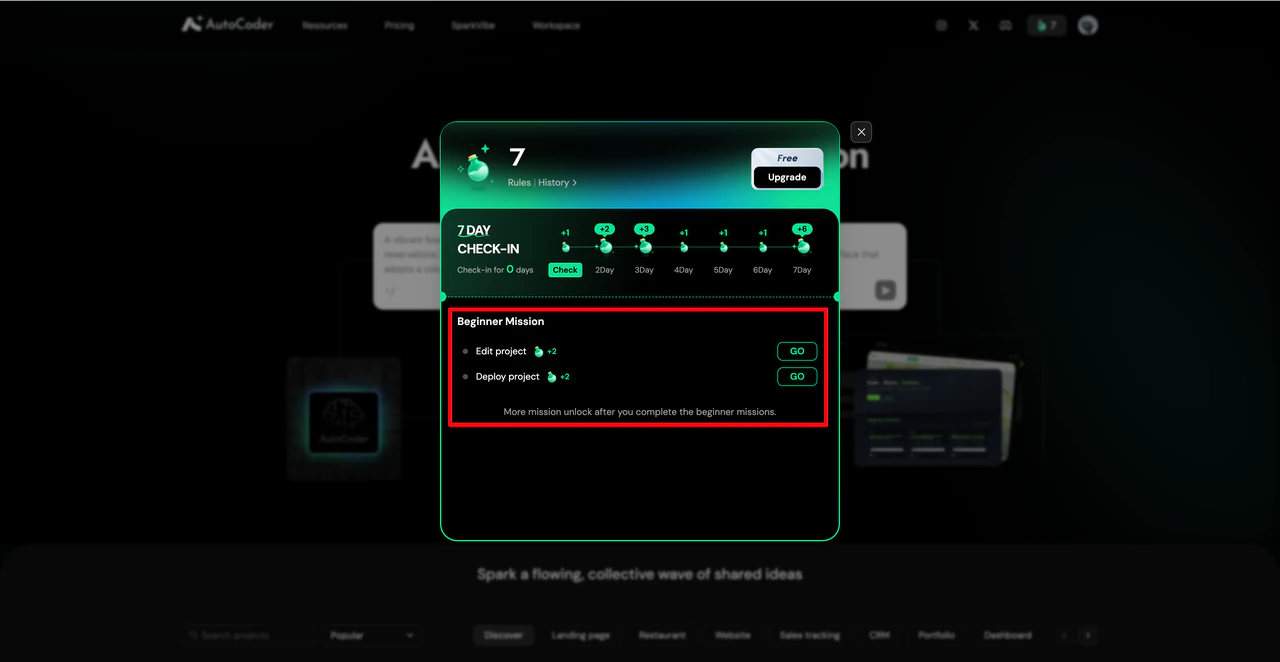 Click the **Go** icon to start creating a new project. Clarify your project type and input clear requirements.
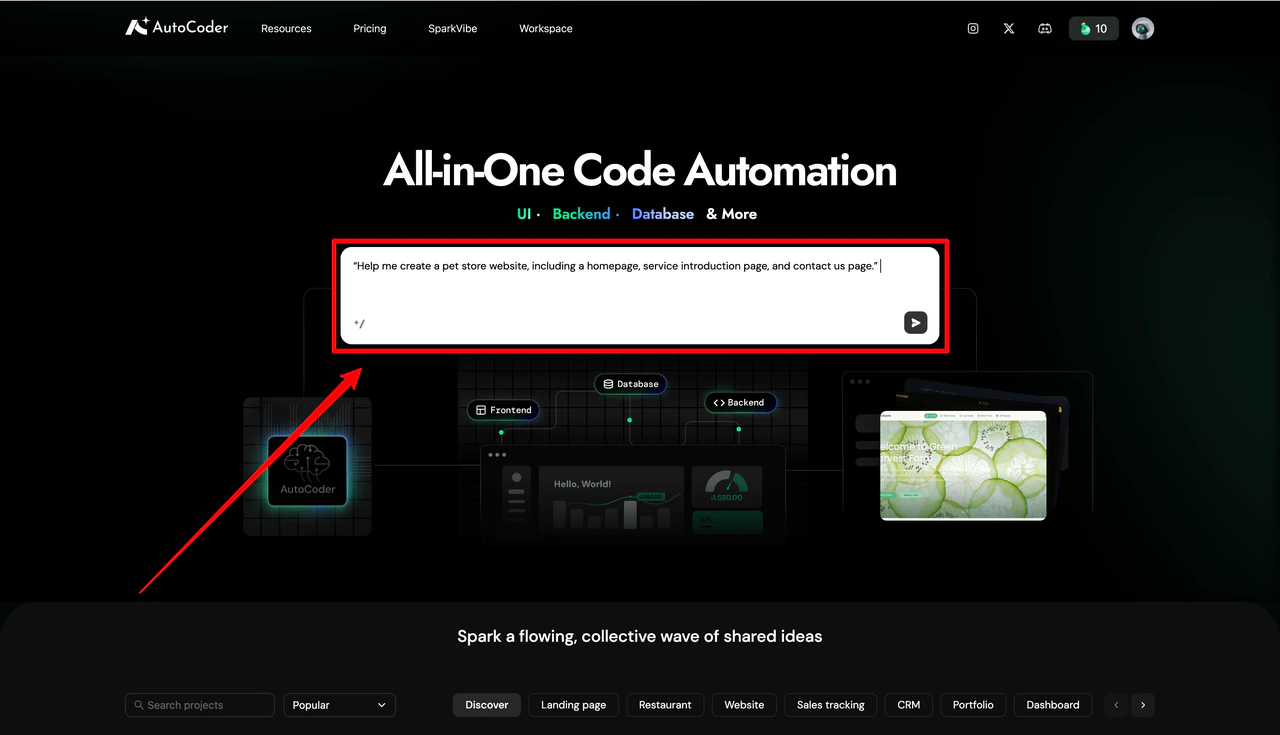
 Input your requirements (e.g., *"Help me create a pet store website with a homepage, service introduction, and contact us page"*), then click **Generate**. AutoCoder.cc will automatically generate an initial project based on your description.
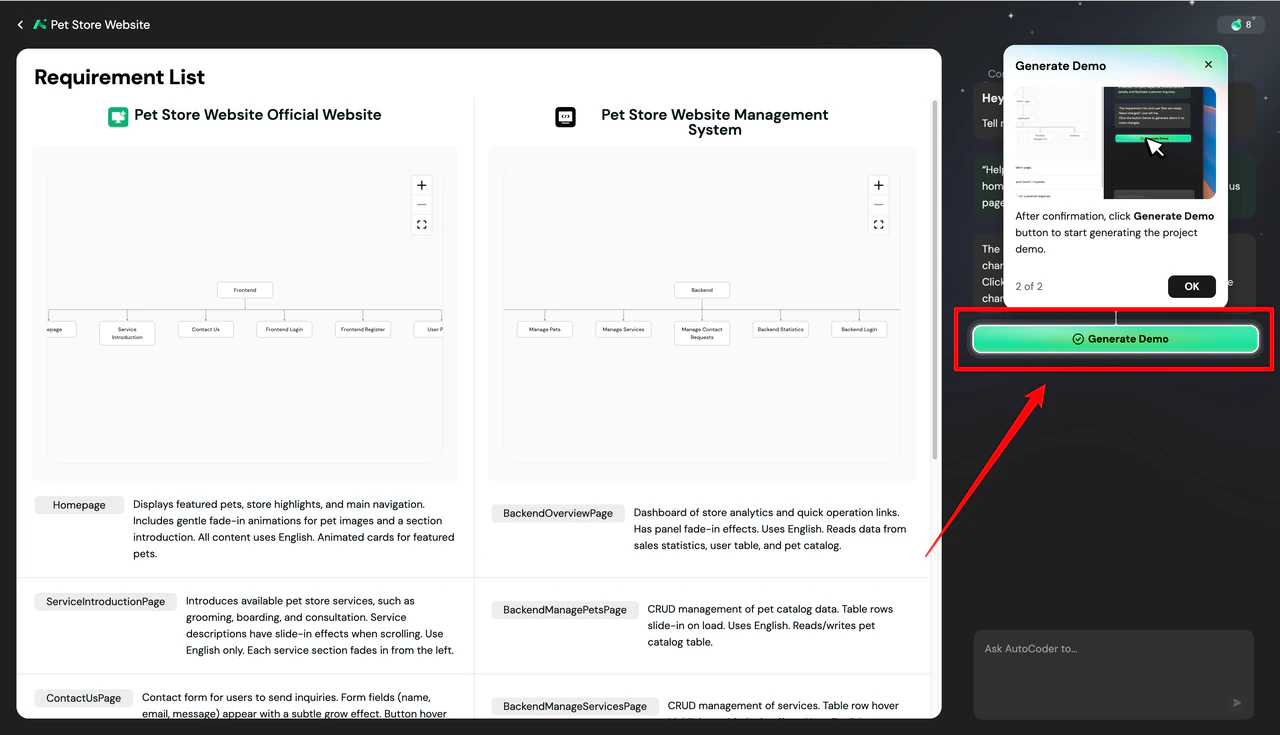 Completing all beginner missions (Create, Edit, Deploy) unlocks more advanced missions.
***
### Daily missions
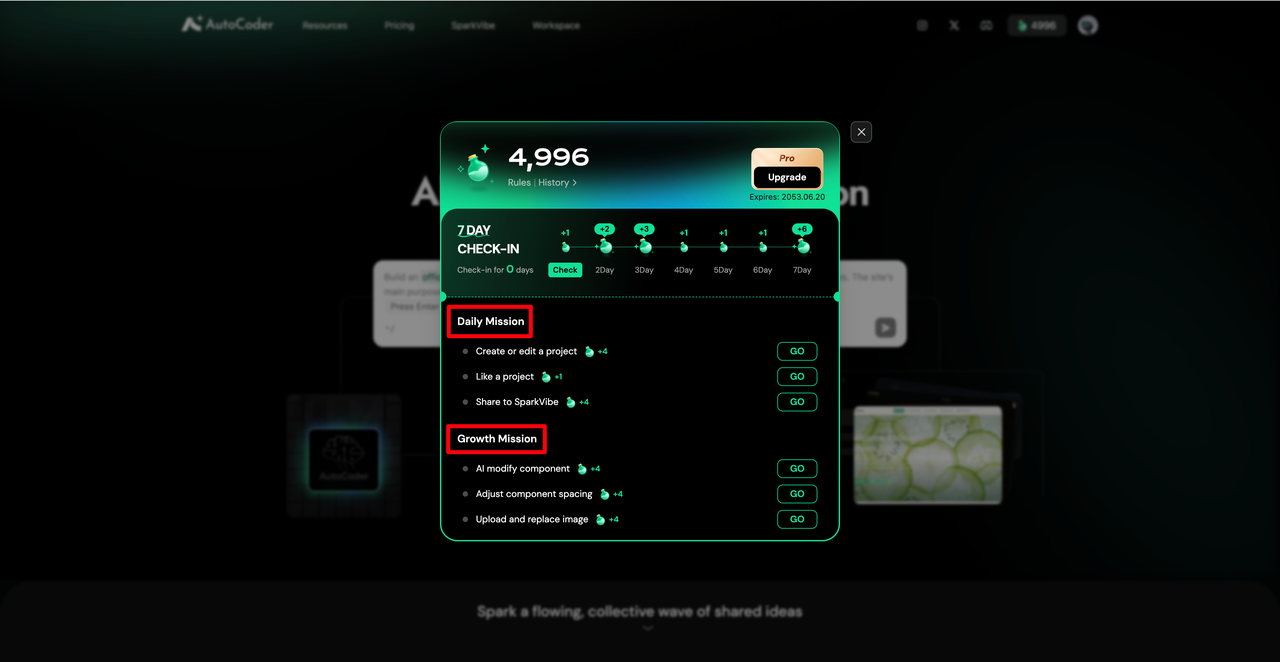
Daily missions encourage continuous use of AutoCoder.cc and community interaction. Common missions include **Create or edit a project**, **Share a project to the community**, and **Like a project**.
**Walkthrough: Like a project**
Go to **Usage & Credits**, find **Like a Project** under **Daily missions**, and click **Go**.
Completing all beginner missions (Create, Edit, Deploy) unlocks more advanced missions.
***
### Daily missions
Daily missions encourage continuous use of AutoCoder.cc and community interaction. Common missions include **Create or edit a project**, **Share a project to the community**, and **Like a project**.
**Walkthrough: Like a project**
Go to **Usage & Credits**, find **Like a Project** under **Daily missions**, and click **Go**.
 The system will redirect you to the **SparkVibe** community. Browse other users' project demos and discover different types of applications.
Click **Like** on a project card you appreciate. The system will record your interaction, mark the mission as **Completed**, and automatically add the reward credits to your account.
***
### Growth missions
Growth missions guide you to explore advanced AutoCoder.cc features, focusing on specific editing capabilities to improve your efficiency in building applications.
Use AI commands to adjust page elements, such as content, layout, and component styles.
Experience page image management by uploading local files and replacing existing images.
Familiarize yourself with text editing by updating titles, descriptions, and page copy.
**Walkthrough: Upload and replace image**
In **Usage & Credits**, locate **Upload and Replace Image** under **Growth missions** and click **Go**.
The system will redirect you to the **SparkVibe** community. Browse other users' project demos and discover different types of applications.
Click **Like** on a project card you appreciate. The system will record your interaction, mark the mission as **Completed**, and automatically add the reward credits to your account.
***
### Growth missions
Growth missions guide you to explore advanced AutoCoder.cc features, focusing on specific editing capabilities to improve your efficiency in building applications.
Use AI commands to adjust page elements, such as content, layout, and component styles.
Experience page image management by uploading local files and replacing existing images.
Familiarize yourself with text editing by updating titles, descriptions, and page copy.
**Walkthrough: Upload and replace image**
In **Usage & Credits**, locate **Upload and Replace Image** under **Growth missions** and click **Go**.
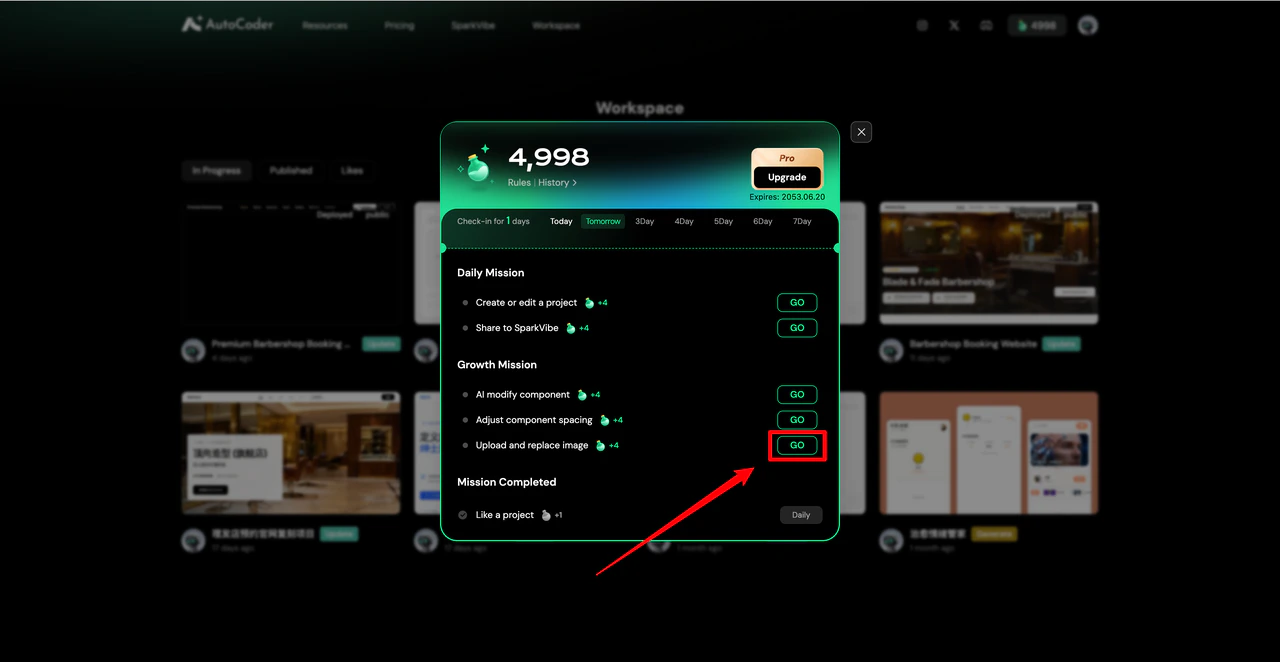 Select the project demo you want to edit and click **Confirm** to enter the project page.
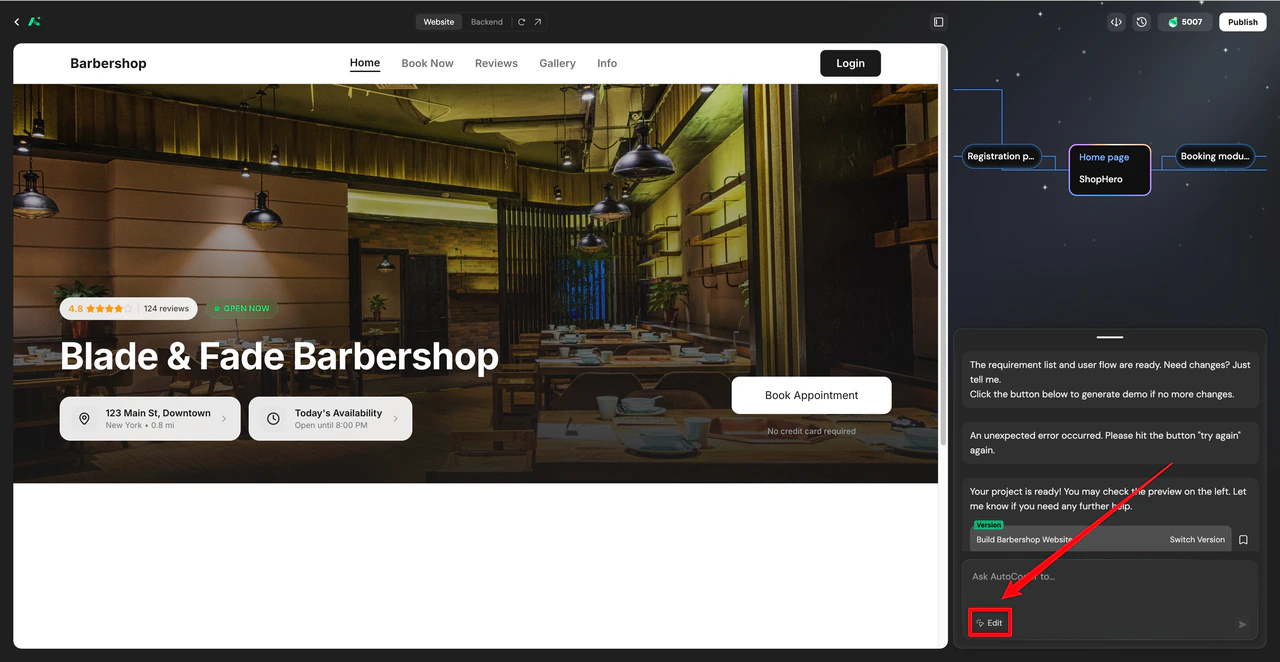
Click **Edit** in the bottom right corner of the demo page to enter **Visual Editing** mode.
Select the project demo you want to edit and click **Confirm** to enter the project page.
Click **Edit** in the bottom right corner of the demo page to enter **Visual Editing** mode.
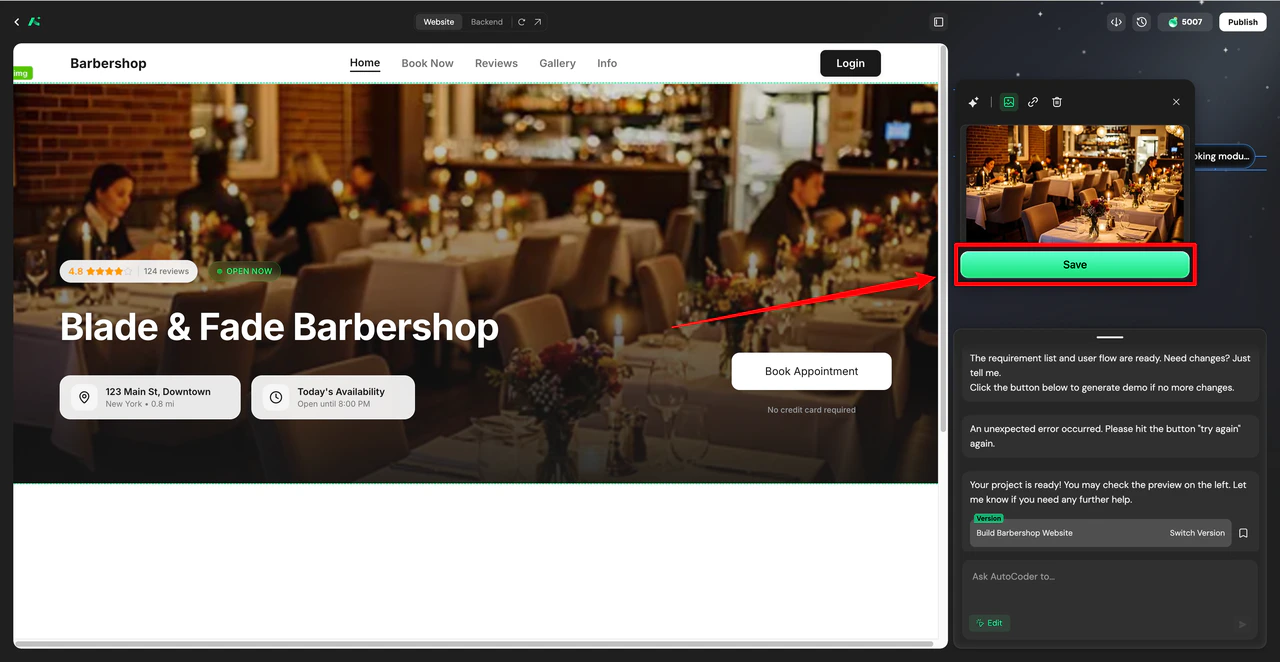
 Click on an image component to open the editing panel. Click the image edit icon, then click **click to upload** to replace it. (Supported formats: JPEG, JPG, PNG. Max size: 10MB).
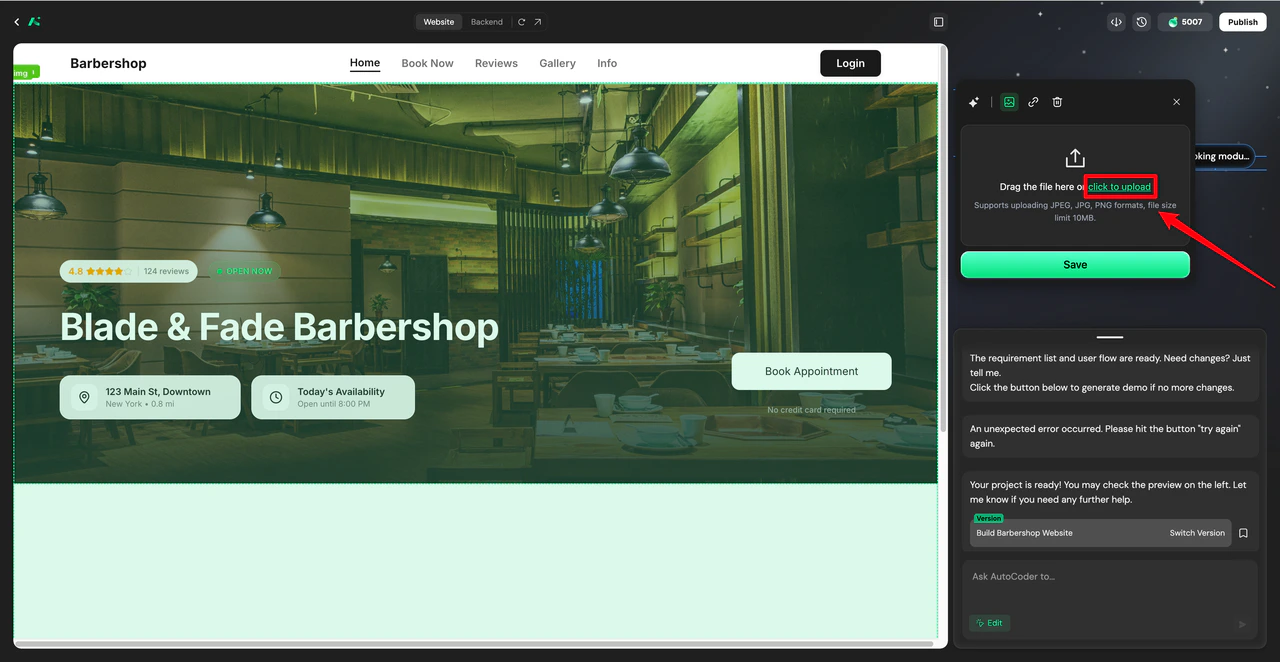 Once the new image is uploaded and displayed, click **Save**. Then, click **Edit** again to exit **Visual Editing** mode. The system will record the modification, mark the mission as **Completed**, and grant you the reward credits.